Work in the web editor
The hosted catalog is the launch point for creating, editing, presenting, sharing, and reusing decks. Open Presentations from the top navigation, then choose the deck action you need. The player adds an object editor, companion details, asset controls, sticky instructions, and exports without hiding the underlying files.
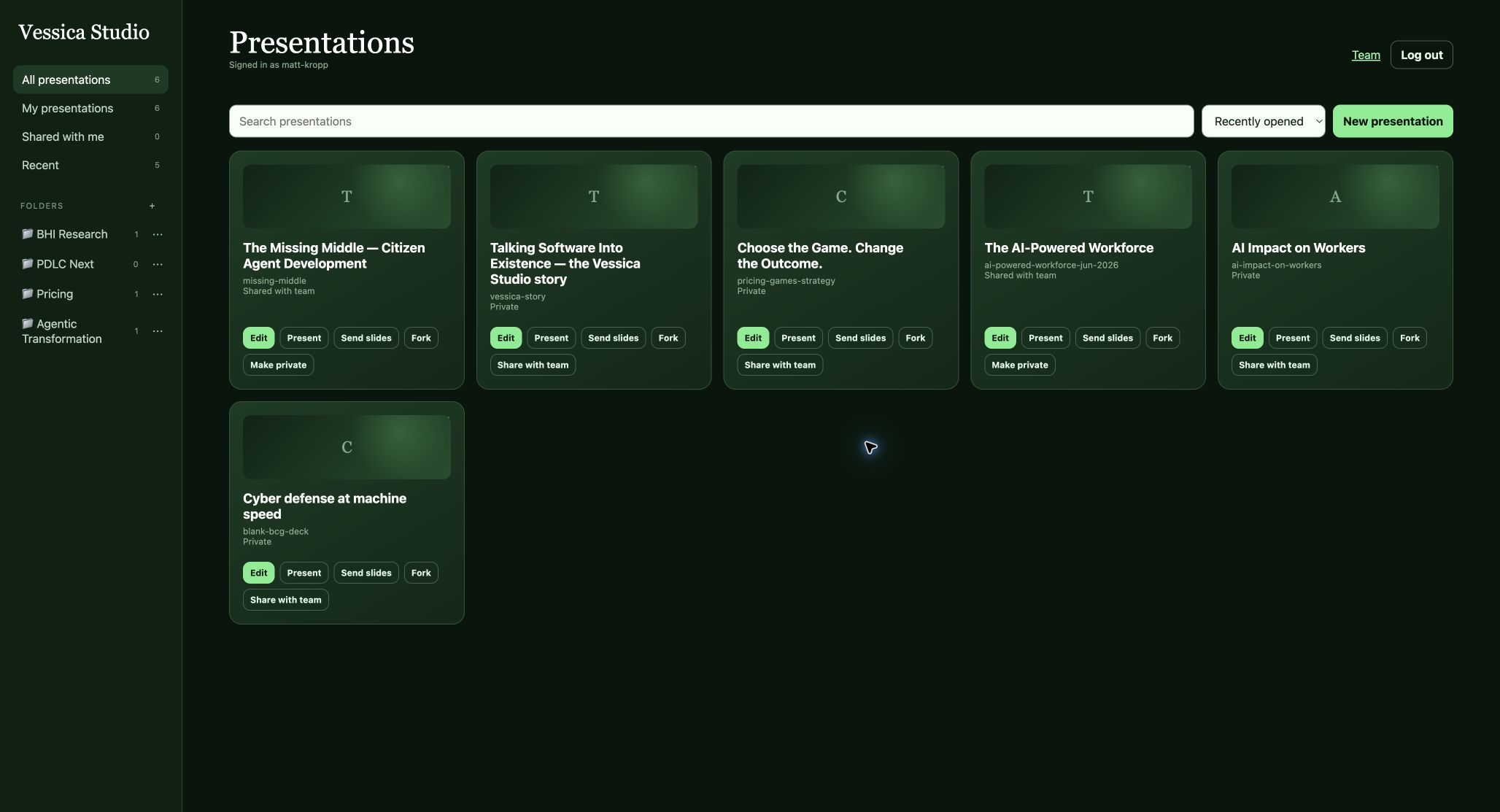 The catalog separates owned and shared decks and exposes the action that is safe for each deck. Previously loaded previews appear immediately while Studio checks for a newer revision in the background.
Organize and launch presentations
- All / Mine / Shared / Recent filters keep personal and team work distinct.
- Search and sort find a deck by title, key, or owner.
- New presentation starts from an included or workspace style template.
- Edit opens the full writable player for a deck you own.
- Present opens the presenter surface.
- View opens a shared deck without granting edit authority.
- Fork creates a private, editable variant with upstream provenance.
- Send slides copies selected slides or creates linked, read-only snapshots in another owned deck.
Edit slide objects
Open a deck with Edit, then choose Edit in the presentation HUD or press E. The Slides panel, canvas, and editing ribbon are all part of the engine-owned player, so the hosted editor and a local vstd serve session use the same editing surface.
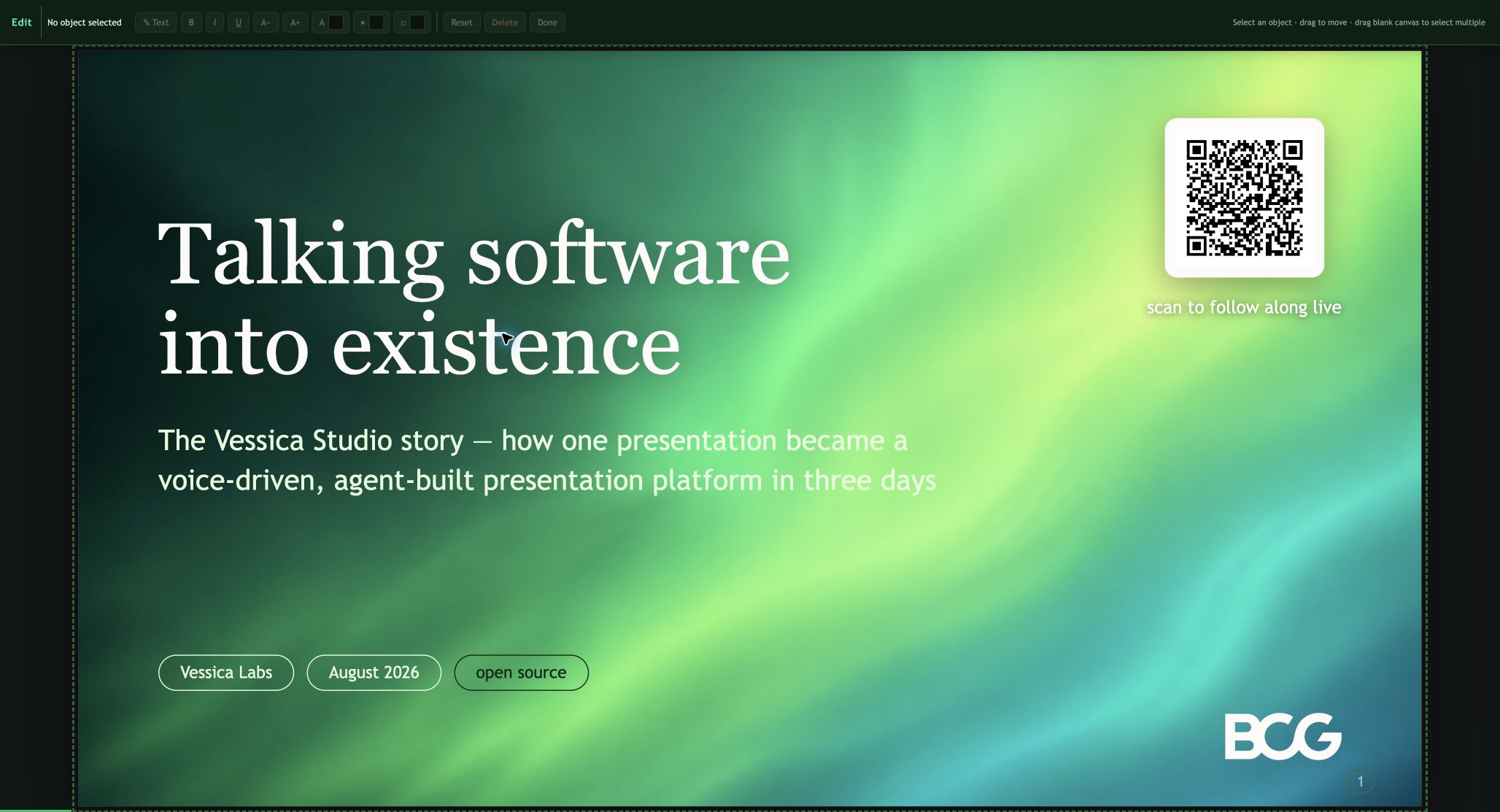 Edit mode keeps the presentation visible while exposing selection, typography, alignment, fill, position, layering, crop, and deletion controls.
Common actions:
- Click text, images, video, charts, or CSS shapes to select them.
- Double-click supported text to edit it directly.
- Drag a selected object or use arrow keys for precise nudging.
- Marquee-select or modifier-click to work with multiple objects.
- Paste an image from the clipboard or drag a video onto the canvas.
- Use Text or Shape in the ribbon to add a new object.
- Continue working while Studio saves frequently; leaving the presentation triggers a final save attempt.
Use the slide companion
Every slide’s Markdown companion carries the reasoning around the visual:
- intent and key ideas;
- evidence and sources;
- visual direction;
- talk track and next-slide transition;
- edit requests and completed-change log;
- attached PDFs, PowerPoint files, documents, spreadsheets, or images.
Open Details from the editing ribbon. Preview the Markdown companion, switch to edit mode, attach a source, and save. Codex and Vessica read this same record when they work on the slide.
Leave an instruction instead of forcing a redesign
Press S or choose Sticky to attach a focused instruction to the current slide or selected object. Small edits can happen immediately; large layout, image, or narrative changes become a redesign request for the agent workflow.
Present, share, and export
- Present enters fullscreen presenter mode.
- Share mints an expiring, deck-scoped audience link and QR code.
- Audience viewers are read-only and can follow the presenter live or browse independently.
- Agenda lists the visible slides and jumps directly to the selected page.
- Grid uses the full workspace and hides the Slides panel until you return to the canvas.
- Download exports the current slide or full deck as PDF, visual-exact PowerPoint, or editable PowerPoint. Audience sessions receive PDF only.
Preview behavior
Catalog previews use a stale-while-revalidate path. A preview already loaded in the current browser session appears immediately. Studio then requests a short-lived URL for the latest revision and swaps it in only after the refreshed preview has loaded. The preview is never treated as the source of truth; opening the deck still resolves the authorized current revision.
The first preview after a browser or service restart can still require a render. Durable cross-session thumbnail generation is a separate hosted-service concern from the player itself.
Keyboard shortcuts
| Key | Action |
|---|---|
| ← / → | Move between visible slides |
| E | Toggle object edit mode |
| P | Enter presentation mode |
| V | Start or stop Vessica |
| D | Start or stop voice dictation |
| S | Open a sticky edit instruction |
| N | Toggle presenter notes |
| G | Open the slide grid |
| M | Open the agenda |