Present and edit with Vessica
Vessica is a realtime voice copilot inside the presenter player. It listens silently, follows the talk track, navigates conservatively, highlights the idea you are discussing, and speaks only after the wake word or conversation shortcut.
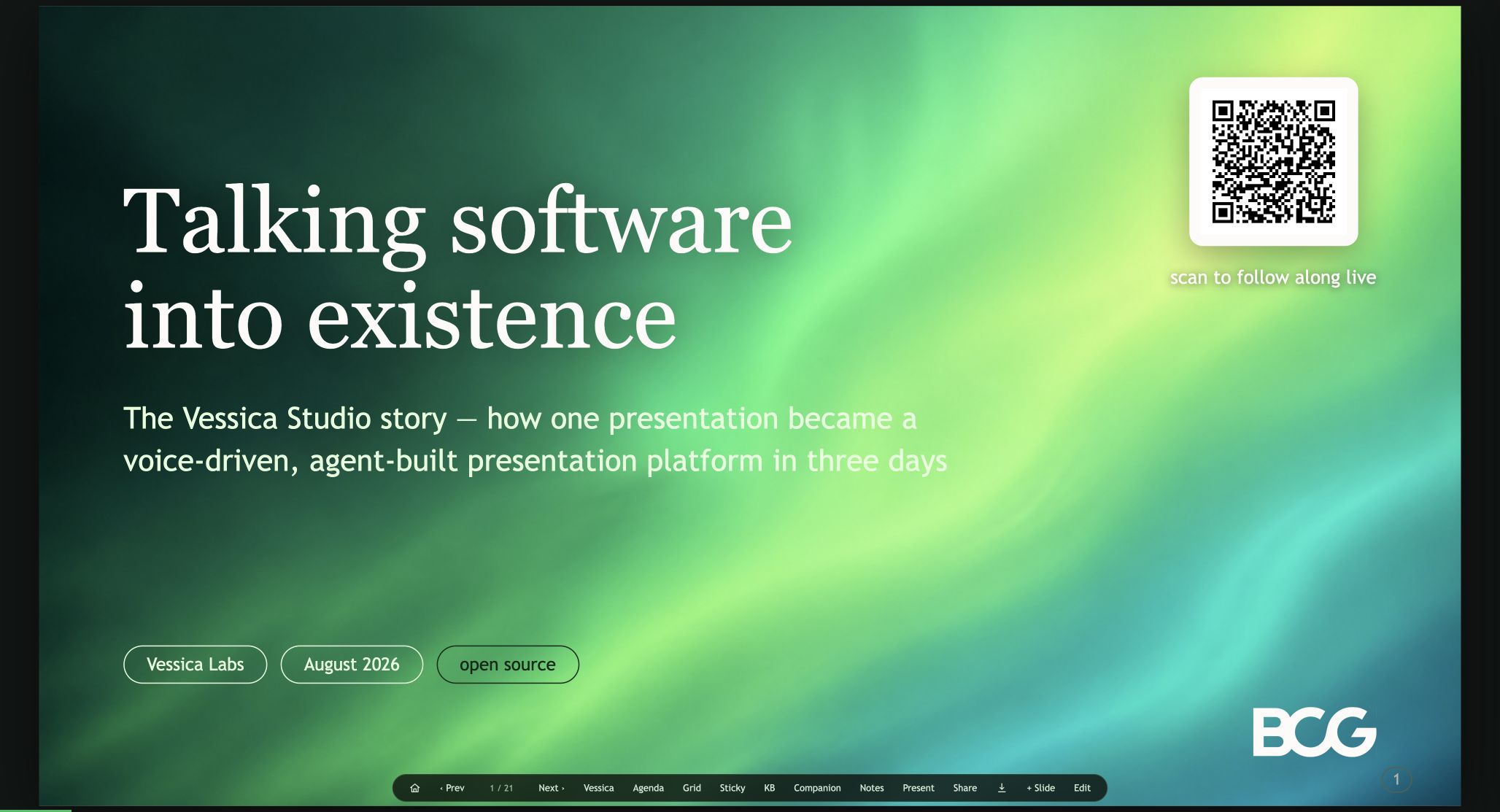 The Vessica control is presenter-only. Audience sessions remain read-only and do not receive the copilot controls.
Before you start
You need presenter access, an OpenAI API key available to the server, and microphone permission in the browser.
Locally, resolve the key through OPENAI_API_KEY, VSTD_OPENAI_KEY, or openai.api_key_cmd, then verify it:
vstd key check
vstd serve product-story
On Railway, store the key as a service variable. Never include it in a studio file or browser code.
Use Vessica while presenting
Open the deck as a presenter
Choose Present from the catalog or open an owned deck in the presenter player.
Enter presentation mode
Choose Present in the HUD or press
P. Fullscreen is optional but keeps the stage clean.Start Vessica
Choose Vessica or press
V. Grant microphone permission if the browser asks.Deliver naturally
Vessica listens without talking, uses the companion talk track as context, can advance when your narration clearly moves on, and highlights a visible idea when useful.
Say “Vessica” to begin a conversation
Ask a short question, request a navigation jump, or make an edit. Tell Vessica “that’s all,” “be quiet,” or thank it to return to silent copilot mode.
Use a clicker instead of the wake and sleep words
After starting Vessica with V, press Shift+V to wake it; press again to return to silent listening. You can mix the shortcut with “Vessica” and “that’s all.” Plain V still starts and stops the entire session, and Shift+V while Vessica is off asks you to start it first.
For a Logitech Spotlight 2, open Logi Options+ → Spotlight 2 → Action button → Single click, choose Keyboard shortcut, and record Shift+V. Keep the presenter player focused so it receives the clicker’s keystroke. Voice shortcuts are ignored in text fields and audience sessions.
If the status says “Vessica audio blocked”, click the status pill to enable sound. The session stays connected while you enable playback. In Cloud, GPT-Live can respond to the wake word independently of slide-tool execution; the conversation indicator does not by itself confirm that speech was heard.
Ask for navigation and delivery help
Try:
- “Vessica, go to slide 12.”
- “Vessica, go to the slide about customer economics.”
- “Next slide.”
- “Highlight the retention number.”
- “What is the transition to the next slide?”
Vessica sees the deck map, current slide, talk track, next-slide cue, and a list of highlightable elements. Natural progression is conservative; explicit navigation happens immediately.
Make live edits by voice
After the wake word, request small changes directly:
- “Change ‘pilot’ to ‘production rollout’.”
- “Retitle this slide ‘The adoption gap’.”
- “Add a bullet about implementation risk.”
- “Remove the last bullet.”
- “Open the companion and rewrite the talk track.”
Exact text and companion edits save immediately when the presenter has edit authority. A large request—new imagery, a full redesign, or narrative restructuring—is recorded as an edit request for the Codex redesign pass rather than improvised on stage.
Talk a new slide into existence
There are two voice paths:
Conversational authoring with Vessica
Say “Vessica, give me a blank slide titled …” and begin explaining it. Vessica distills points, records narration in the talk track, and can set the lead. Say you are done to leave authoring mode.
Silent dictation mode
Press D. The realtime model becomes a silent scribe: narration flows into the companion talk track while distinct ideas become draft bullets. Directives such as “new slide,” “change the title,” “note the source,” and “that’s it” are executed without spoken replies.
Use audience-aware tools
When configured, Vessica can ask the audience for input, show a scan-to-chat QR, summarize aggregate replies on a live display, send an SMS or email, place a short call, search the web, or run code-backed analysis. These are presenter-only tools and degrade explicitly when a provider is not configured.
The important stage rule is aggregation: Vessica synthesizes audience pulses and avoids reading individual replies aloud one by one.
Stop safely
Press V again to end the realtime session. Press Esc to leave fullscreen. A navigation away during blank-slide authoring saves the draft before leaving authoring mode.